 | Presentation Browser - PrInting |


Overview Demonstrations Printing Documentation
|
On the whole, browsers are not good at printing. Unless the page has a Print button or link, you often have what you want on one page, the rest on another, with about seven pages of garbage. The Daisy Presentation Browser has two methods, that allow the printing of clean copies of all or part of a web page, which are controlled by a simple dialog. 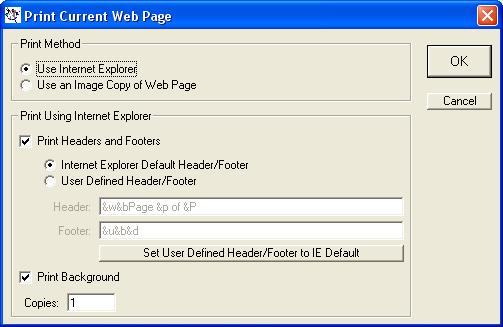 You can either choose to print the web page using the standard method in Internet Explorer or by creating an image of the page and printing all or part of it. In the dialog shown, the page will be printed using Internet Explorer with the default header and footer. Options allow the headers and footers to be changed or removed completely, when using Internet Explorer. When printing using an image, the web page is first displayed in a dialog. 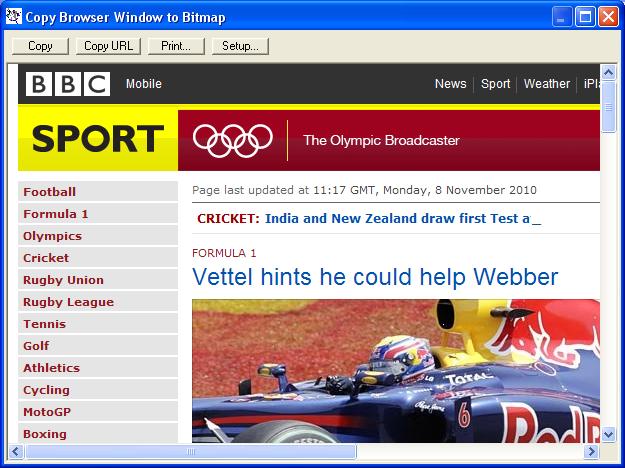 Before printing you adjust the size of the dialog, to show the part of the page you want to print. Printing is then performed using the Print button at the top of the dialog. |